Getting Started
Signing In
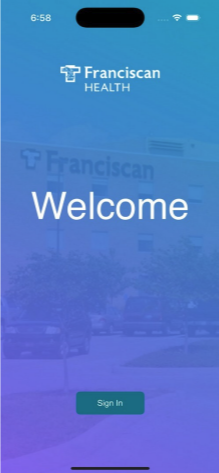
When you first open the app, you will see the Welcome screen with the Franciscan Health logo and a Sign In button at the bottom. Tap the Sign In button to log in with your
Franciscan Health credentials, the same account you use for Outlook and other work tools.
How Login Works Across the App
After signing into the app itself, you are good to browse the Home Screen, read news, check the Payroll Calendar, and use other built-in features. Some tiles like Workday, FRANC, and FranciscanVIP require a one-time Microsoft authentication when you open one of them for the first time. Once you complete that sign-in on any one of those tiles, your session carries over to all the others automatically. So in total, you will only need to sign in twice: once into the app, and once into any tile that requires Microsoft authentication. After that, everything just works.
Home Screen
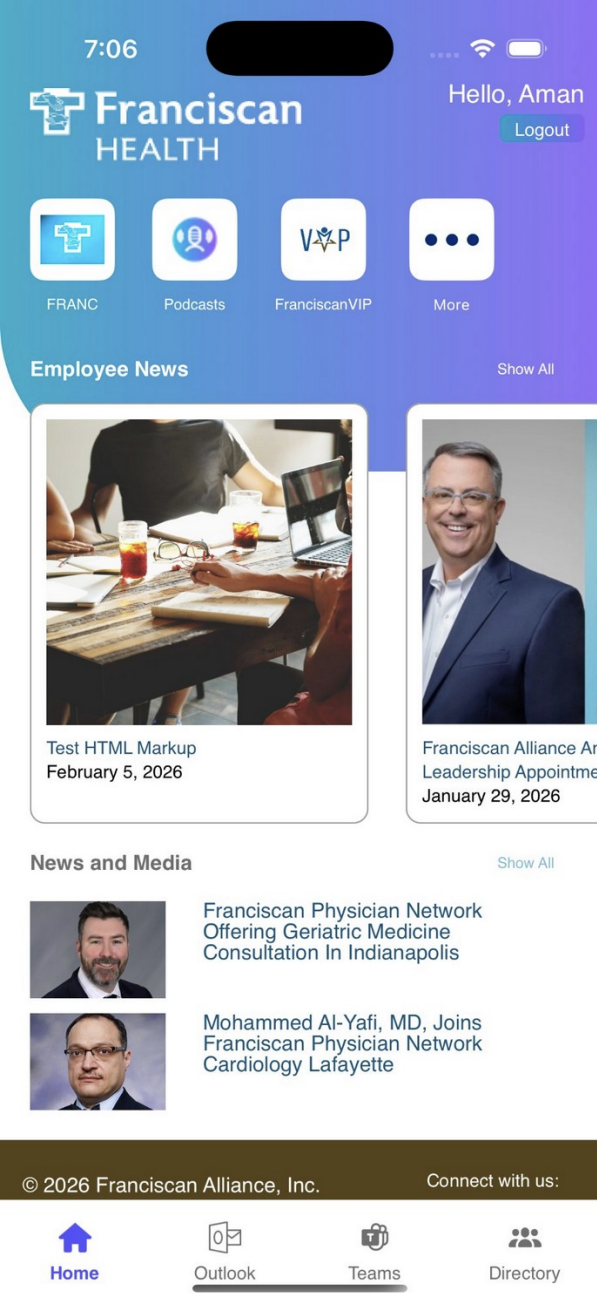
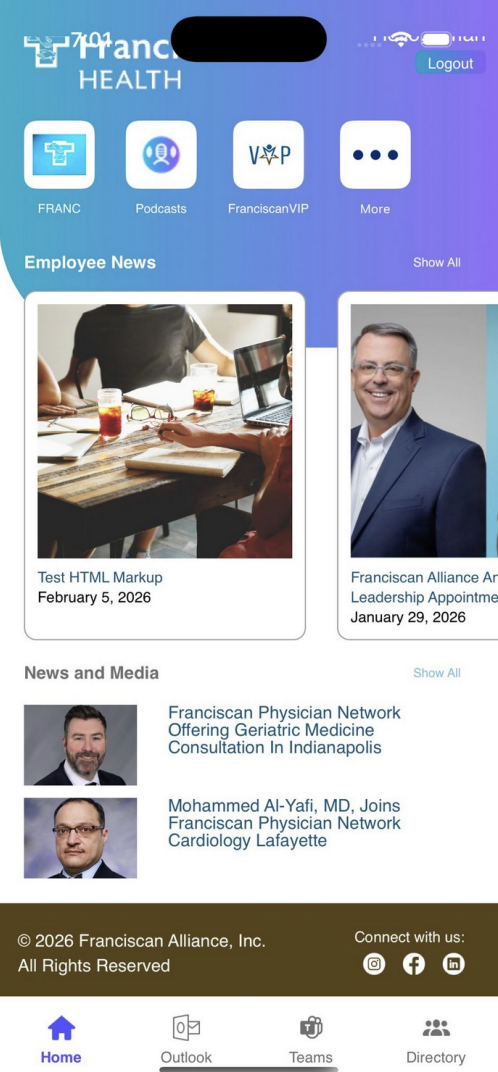
After signing in, you land on the Home Screen. This is your main dashboard and the central hub for everything in the app. At the top you will see a personalized greeting with your name and a Logout button in the upper right corner.
Quick Access Tiles
Right below the header, there is a row of quick access tiles that give you one-tap access to frequently used tools. These tiles reorder themselves based on your usage, so the apps you open most often will appear first. The last tile in the row is always the More button (three dots icon), which opens the full list of all available apps.
In the example above, the quick access tiles show FRANC, Podcasts, FranciscanVIP, and More. Your tiles may look different depending on which features you use most.
Employee News
Below the quick access tiles, you will find the Employee News section. This shows the latest internal news articles and announcements for Franciscan Health employees. The articles are displayed as cards with a thumbnail image, title, and date. You can swipe left and right to browse through them, or tap “Show All” to see the complete list. Tap on any card to read the full article
All Apps
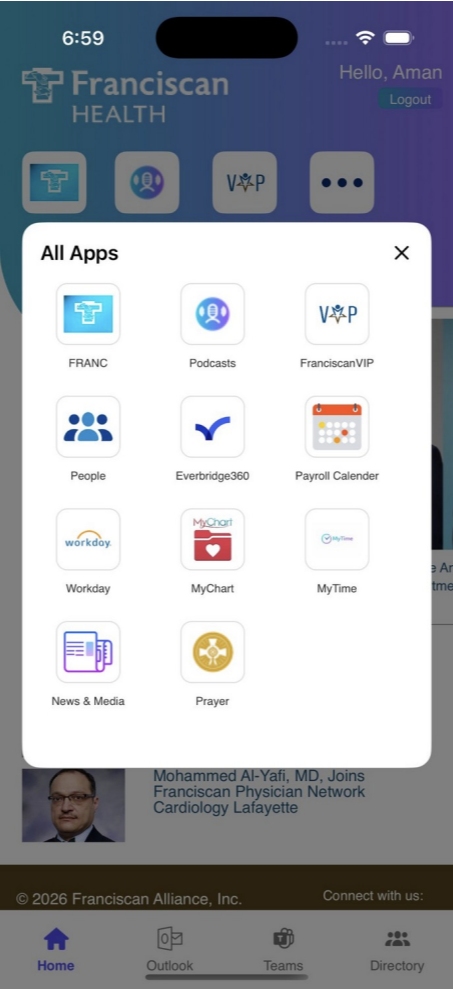
Tapping the More tile (the three dots icon) on the Home Screen opens the All Apps modal. This is a grid view that shows every app and tool available to you in FA Coworker. From here you can access any feature, even ones that are not currently showing in the quick access tiles on the Home Screen.
The apps available include FRANC, Podcasts, FranciscanVIP, People Directory, Everbridge360, Payroll Calendar, Workday, MyChart, MyTime, News & Media, and Prayer. Just like the quick access tiles, the grid order reflects which apps you have used most recently. Tap the X button in the top right corner to close the modal and return to the Home Screen.
App Features
FRANC
The FRANC tile opens the Franciscan Forward SharePoint site within the app, where you can access the Franciscan Forward menu options and content.
Workday
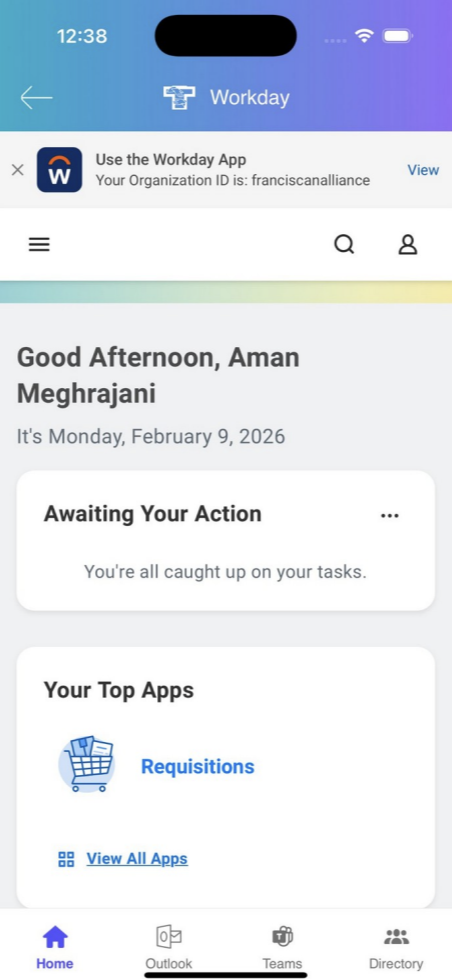
Tapping the Workday tile opens the Workday dashboard directly inside the app. From here you can manage HR tasks, view requisitions, check pending items, and access all the Workday features you normally use.
The Workday screen includes a personalized greeting with the current date, an Awaiting Your Action section that shows any pending tasks, and a Your Top Apps section for quick access to tools like Requisitions. Tap the back arrow in the upper left to return to the FA Coworker Home Screen at any time.
Payroll Calendar
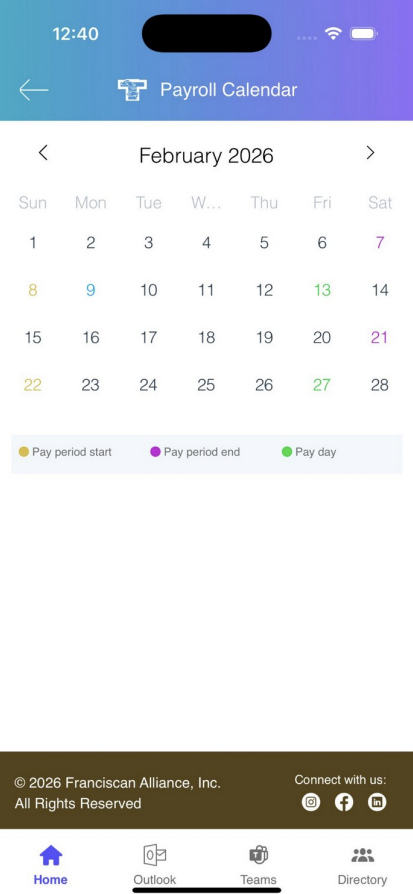
The Payroll Calendar gives you a clean, easy to read calendar view of your pay schedule. It highlights important dates with color coding so you can quickly see when each pay period starts, when it ends, and when your pay day is.
The legend at the bottom of the calendar explains the color coding: yellow dots mark the pay period start date, pink/magenta dots mark the pay period end date, and green dots mark your actual pay day. You can navigate between months using the left and right arrows at the top
Prayer
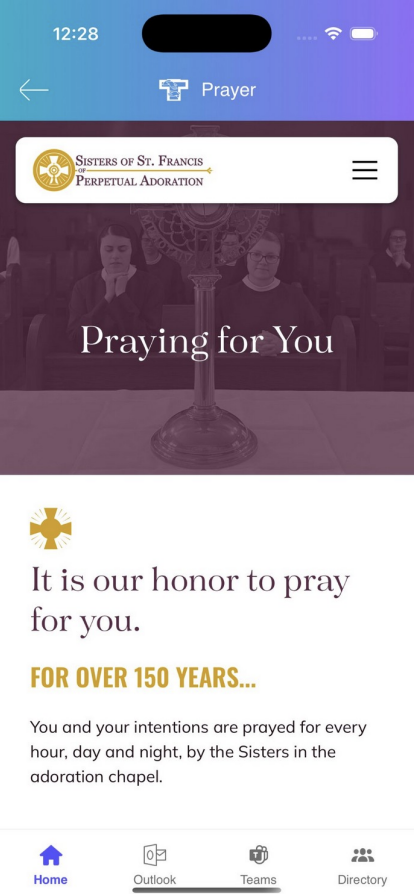
The Prayer tile takes you to the Sisters of St. Francis of Perpetual Adoration prayer page, where you can submit prayer requests and intentions.
Everbridge360
Tapping the Everbridge360 tile opens the Everbridge360 app on your phone, where you can receive and manage emergency alerts and safety notifications. If you do not have the Everbridge app installed yet, you will be redirected to the App Store to download it
People Directory
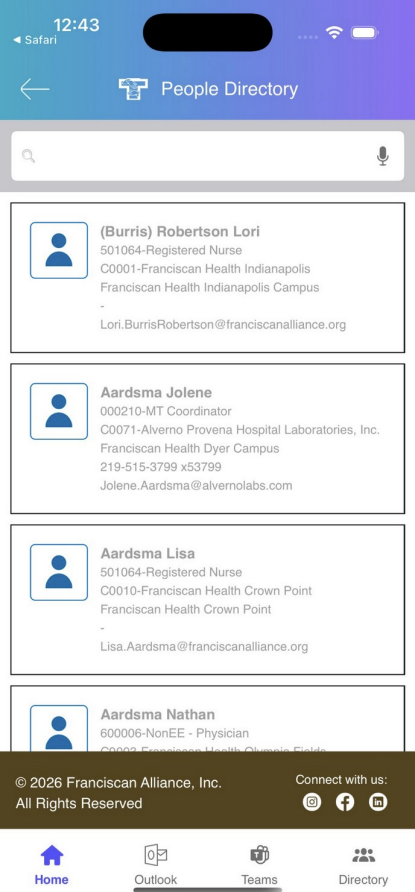
The People Directory gives you a searchable directory of Franciscan Health employees. You can look up any coworker by name and find their job title, department, campus location, phone number, and email address.
At the top of the screen there is a search bar where you can type a name to find someone. The directory lists employees alphabetically, and each entry shows the person’s name, job code and title, company and campus, phone number (with extension if applicable), and email address.
News and Media
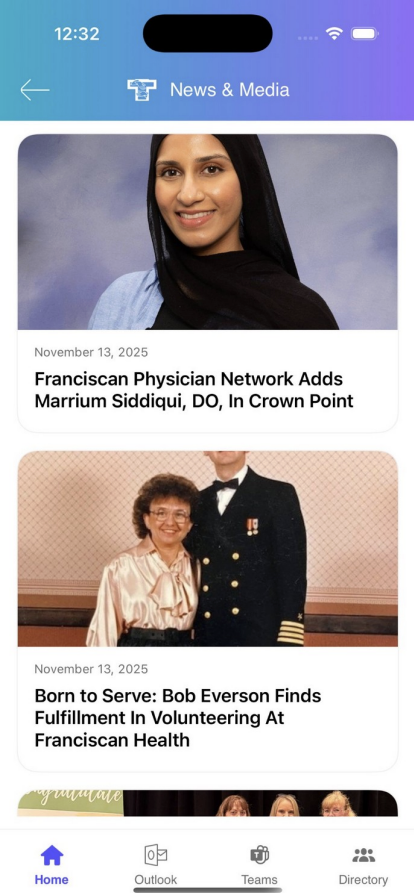
The News & Media section gives you a dedicated view of all the public-facing news articles and media coverage related to Franciscan Health. This is separate from the Employee News section on the Home Screen.
Each article is displayed as a card with a large featured image, publication date, and headline. Tap on any article to read the full story.
FranciscanVIP
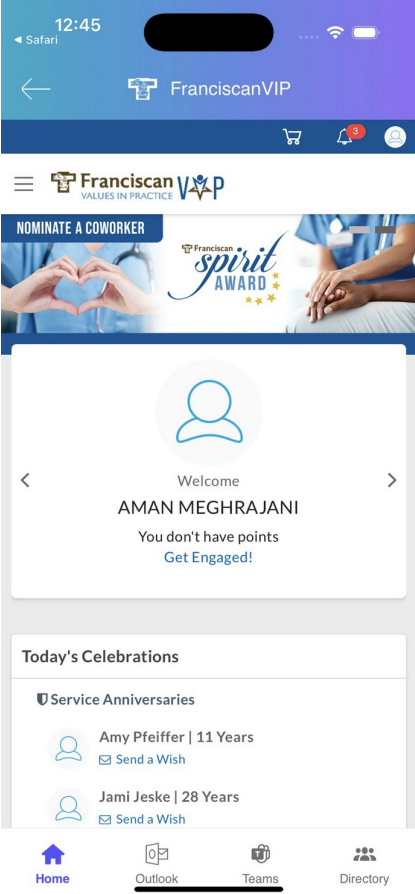
FranciscanVIP stands for “Values in Practice” and it is the employee recognition platform. This is where you can recognize your coworkers for living out the Franciscan values and earn points.
The FranciscanVIP page shows your personal welcome with your name and current point balance. There is a “Nominate a Coworker” button at the top where you can submit recognition for someone who has gone above and beyond. You will also see the Franciscan Spirit Award banner and a Today’s Celebrations section that lists Service Anniversaries. You can tap “Send a Wish” next to any coworker’s name to congratulate them on their milestone.
Podcasts
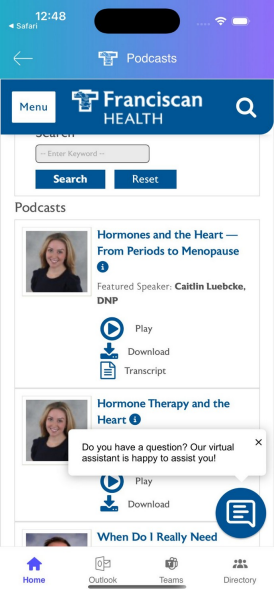
The Podcasts section takes you to the official Franciscan Health podcast page. These short podcasts feature doctors and staff discussing a variety of health topics relevant to both employees and the community.
You can search for specific episodes by keyword, topic, or provider using the search filters at the top. Each podcast episode shows a thumbnail of the speaker, the episode title, and the featured speaker’s name and credentials. For each episode you have three options: Play to listen right away, Download to save it for later, or Transcript to read the content instead of listening.
Reading Employee News Articles
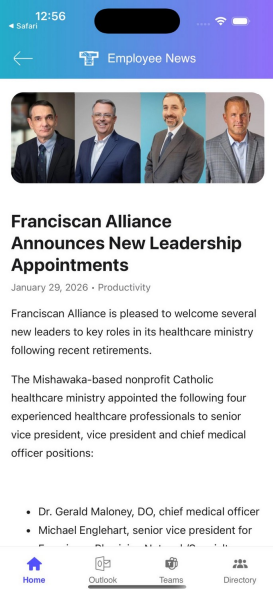
When you tap on any Employee News card from the Home Screen, it opens the full article detail view. This screen shows the article’s featured image at the top, followed by the title, publication date, category tag, and the full article body. The articles support rich formatting including headings, paragraphs, bullet lists, and images.
You can scroll through the full article to read everything, and tap the back arrow in the upper left to return to the Home Screen when you are done.
Directory Tab
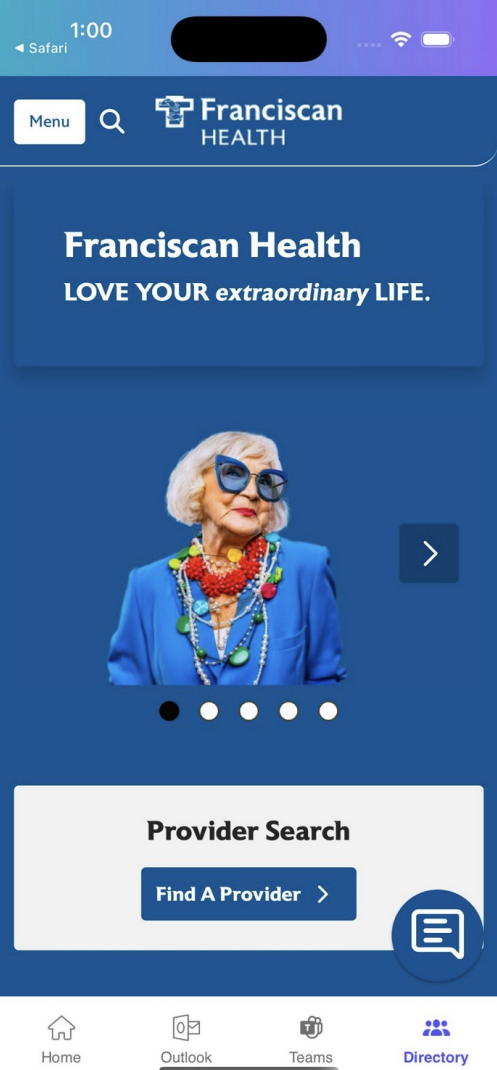
The Directory tab in the bottom navigation bar is different from the People Directory in the All Apps menu. This tab opens the public Franciscan Health website where you can use the Provider Search tool to find healthcare providers, browse services, and access other community-facing resources.
Footer and Social Links
At the bottom of the Home Screen you will find the app footer. It displays the copyright notice for Franciscan Alliance, Inc. and includes social media icons linking to the official Franciscan Health accounts on Instagram, Facebook, and LinkedIn. Tap any of these icons to visit the corresponding social media page.
Logging Out
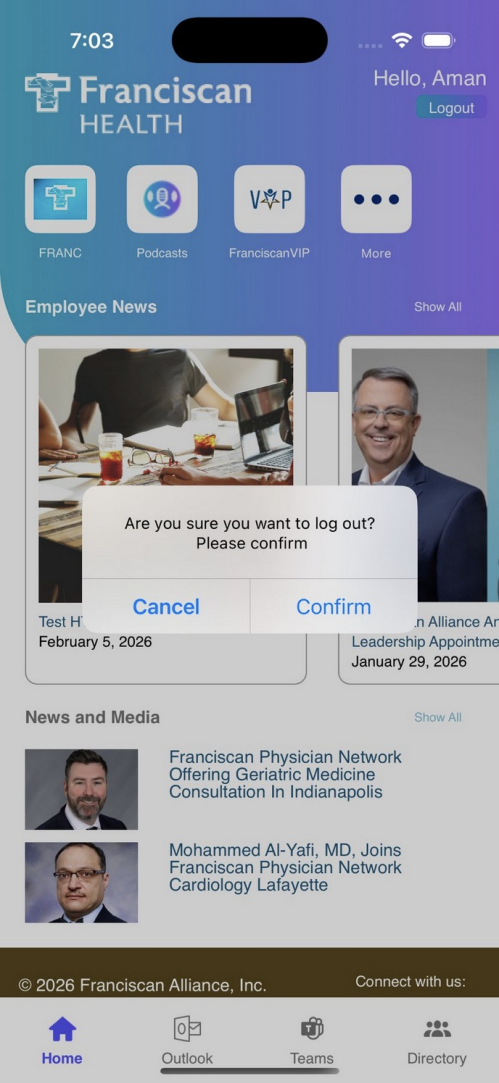
When you are done using the app, you can log out by tapping the Logout button in the upper right corner of the Home Screen. The app will show a confirmation dialog asking “Are you sure you want to log out? Please confirm” with two options: Cancel and Confirm. This prevents accidental logouts.
Tap Confirm to log out and return to the Welcome/Sign In screen. Tap Cancel if you changed your mind and want to stay logged in